


Zoom Workplace
4.175.68K Reviews
App Specs
- Version
- Varies with Device
- Updated On
- License
- Free
- Downloads
- 1,000,000,000+
- Developer
- zoom.com
- Categories
- Business
- Platform
- Android, iOS
Screenshots


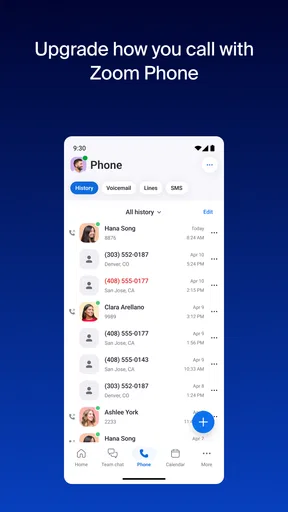

 Analysis by AppCompare
When I judge a workplace app, I look beyond whether a meeting starts: I want to know if I can find the right controls, follow a conversation in different settings, and get useful work done without turning every task into a call. Zoom Workplace brings meetings and workplace communication together, but its value depends on how much of that connected workflow you actually need. I find it most appealing for people who regularly move between calls, team messages, and shared work, rather than someone seeking only a basic video call.
Readability and navigation in everyday use
Zoom Workplace is a business app from zoom.com, and its main appeal is the chance to handle several kinds of workplace communication in one place. That can make the day easier when a meeting link, a follow-up message, and a shared document belong to the same project. It can also make the app feel busier than a single-purpose calling tool. I would take a few minutes to explore the layout before relying on it for a time-sensitive meeting, especially if I am joining a team’s established workflow for the first time.
The app is free to download, though it offers in-app purchases priced from $16.99 to $159.99 per item. That makes it reasonable to try before deciding whether its wider capabilities are useful to you, but I would not assume every feature or plan is included at no cost. Its Everyone content rating makes it broadly suitable from an age-rating perspective; workplace content and account arrangements still depend on the organization and the way the app is used.
Guides and Analysis on Zoom Workplace
The scale of its audience is a practical clue, not a guarantee that every team will find it effortless: it has over one billion installs and an average rating of 4.1 from around 4.5 million ratings, alongside roughly 74,000 written reviews. I see that kind of reach as useful when colleagues or clients already know how to join a Zoom meeting. It does not remove the need to check which account, meeting settings, and workplace tools your own team uses.
Motor and sensory considerations
Video meetings can be tiring when someone has to manage several controls while listening, speaking, and keeping track of the discussion. In my experience, it helps to prepare the meeting link and any needed material before joining, rather than hunting through messages once other people are waiting. A quick test of the microphone and camera in a low-pressure moment can also reduce fumbling at the start. These are simple habits, but they matter more when a person has limited dexterity, fatigue, or difficulty switching attention quickly.
Sound is another part of access, and Zoom’s noise suppression can help when ordinary background sounds compete with speech. That is useful in a shared home or a room where interruptions are hard to avoid, although it cannot make every environment quiet or guarantee that every voice will be easy to understand. If listening is difficult, I would tell the meeting host what helps—such as speaking one at a time and leaving a pause between topics—rather than expecting software alone to solve the problem.
For anyone who relies on captions, screen-reader support, keyboard navigation, or particular display adjustments, the best approach is to check the current app controls and test them in the actual work setup before an important call. I do not treat a polished interface as proof that every access need is covered. A workplace administrator may also shape which tools are available, so the practical answer can differ between personal use and a managed work account.
Worth Reading Before You Choose

Baby Panda World Brings Quick Play to Modern Phones, but Its Game Library Feels Busy

ESPN’s Live Game View Makes Following Close Games Easier

QuizzLand Review: A Good Fit for Short Trivia Breaks, Not Every Player

Basketball Stars: Multiplayer Is Fast, but Can It Recover When Matches Go Wrong?

WEBTOON Turns Phone Updates Into a Better Reading Routine

Link to Windows Runs on Shared Habits, Not Social Feeds
Making Zoom Workplace fit the way you work
I find the best way to assess Zoom Workplace is to begin with one familiar task—joining a call or following up with a colleague—then add more of its workflow only if it genuinely helps. That gradual approach can reveal whether its layout and controls suit your habits without making a busy workday harder. It also sets up the next question: how to make its broader range of tools useful without adding friction.
Situational access and a realistic workday
Consider a freelancer who starts the morning with a client call, receives a change request in team chat, and needs to locate a presentation before the next discussion. Keeping communication and meeting activity in one app can reduce the small but frustrating switches between separate tools. The advantage is strongest when the people involved already use Zoom Workplace and share a clear convention for where decisions and files belong. If every participant uses a different service, the app cannot by itself prevent information from becoming scattered.
One useful habit is to treat the chat as a place for follow-up, not as a substitute for a clear record of decisions. After a call, I would send a short message that names the agreed task and its owner, then share the relevant file in the team’s usual location. This makes the workflow easier to revisit later and avoids relying on someone’s memory of a fast-moving conversation. For sensitive work, I would also check the organization’s rules before sharing documents or discussing confidential details.
Breakout rooms can suit a workshop where a large group needs to discuss separate questions before returning to the main meeting. They are less helpful when participants need a simple, uninterrupted conversation or when the host has no time to explain the activity and move people between groups. I would plan the room task in advance and make its purpose clear; otherwise, splitting a meeting can create confusion instead of useful discussion.
Where it fits among workplace alternatives
Compared with a basic video-calling app, Zoom Workplace aims to connect meetings with messaging and other work activity, which is convenient if you want fewer separate apps open. A dedicated chat service may feel more direct for a team whose work is mostly asynchronous, while a lightweight calling option may be a better fit for occasional one-to-one conversations. The trade-off is straightforward: a broader workspace can reduce app switching, but it asks you to learn and maintain more of its workflow.
That distinction matters for small groups as much as large organizations. A freelancer who only needs to join a client’s call may not benefit from adopting a broader workplace environment; the client’s invitation and existing tools may be enough. A team that schedules recurring discussions, exchanges files, and follows up in messages has more reason to make the app part of its routine. I would choose based on the communication habits already in place, rather than moving everyone simply because a single app appears able to do several jobs.
Zoom Workplace was released on January 24, 2013, and the product has developed into a familiar option for workplace communication. Familiarity can make it easier to coordinate with people outside your own team, but it should not be confused with simplicity for every user. Before committing to it as a shared hub, I would confirm that colleagues can access the meetings and messages they need, and that the available account setup matches the organization’s requirements.
Remaining barriers and practical trade-offs
The original article’s praise for security and flexibility needs a practical qualification: security depends on the settings and account practices in use. I would avoid treating any single security phrase as a substitute for checking meeting access, account protections, and workplace policy. For a sensitive conversation, the host should review who can join and what sharing is appropriate. That small pause is more useful than assuming a default setup fits every meeting.
The app can also impose a learning curve when people use more than its basic meeting function. A newcomer may need to understand where a team expects messages, how files are shared, and which meeting controls the host manages. I would introduce one workflow at a time—first joining and participating in calls, then using the team’s messaging and file habits—rather than asking someone to master everything on their first day. That is especially helpful for people who find dense interfaces or rapid changes difficult.
For a person joining from a noisy location, a phone with limited battery, or a connection that is not dependable, a long video call may be the wrong format regardless of the app. If the topic can be handled in a concise message or a shared document, that may be less demanding and easier to revisit. When a call is necessary, sending the agenda and files beforehand can reduce the time spent navigating while listening. These choices make the experience more inclusive without pretending one interface can remove every situational barrier.
Getting started without adding friction
If you are deciding whether to install it, start with the task you actually need to do: join a meeting, message a colleague, or coordinate a small project. Try that workflow before building your whole workday around the app. If you are joining an organization, ask which account to use and where the team keeps shared materials; that prevents the common annoyance of having the right app but the wrong place to look.
It is also worth considering who benefits from the app’s wider scope. People who alternate between calls and team follow-up may appreciate having those activities together. Someone who prefers minimal tools, rarely attends meetings, or already has a well-functioning workplace system may find little reason to switch. The best fit is not the person who uses the most features, but the person whose everyday communication becomes clearer with them.
A Deep Dive into Features
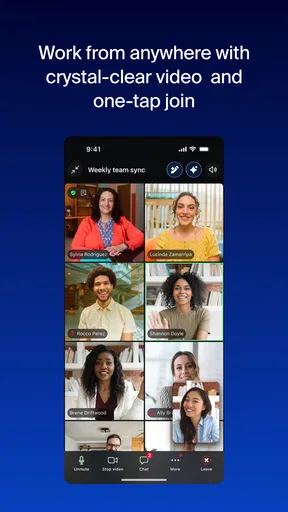
One of the standout features is the video conferencing. It’s not just about seeing everyone’s face in HD; it’s about the experience. The background noise suppression works wonders, ensuring your dog barking in the background doesn’t become the star of the meeting. Plus, the breakout rooms feature is perfect for brainstorming sessions and team collaborations.
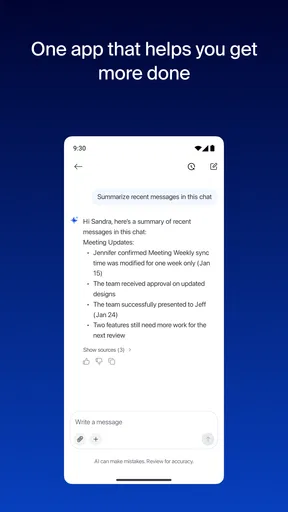
Messaging is another key area where Zoom Workplace shines. The chat function is robust, supporting everything from text messages to file sharing. And speaking of files, the app’s integration with cloud storage services means you can access your documents anytime, anywhere. No more scrambling to find that important presentation minutes before a call!
Why It Stands Out
What really sets Zoom Workplace apart from the pack is its focus on security. End-to-end encryption ensures that your conversations stay private, which is a huge plus in today’s digital age. The app also offers a range of authentication methods to keep your account safe from unauthorized access.
Another aspect I love is its scalability. Whether you’re a freelancer or part of a large corporation, Zoom Workplace can be tailored to fit your needs. It’s flexible enough to cater to small team meetings or large webinars with hundreds of participants.
A Few Words of Advice
While the app is pretty much a powerhouse, there is a bit of a learning curve for some of the more advanced features. I’d recommend taking advantage of the tutorials and resources available online to get the most out of it.
In conclusion, Zoom Workplace is more than just a virtual meeting app. It’s a comprehensive solution for modern workplaces, combining the best of video conferencing, messaging, and productivity tools into one neat package. If you’re looking to enhance your remote work experience, this app is definitely worth a try.
My inclusive verdict
I see Zoom Workplace as a capable choice when meetings, messaging, and shared work genuinely overlap, especially for teams whose clients or colleagues already use it. Its broad reach can make joining familiar, and noise suppression and breakout rooms can help in particular situations. At the same time, accessibility is personal: people should test the controls and communication methods they depend on, and teams should make room for alternatives such as written follow-ups or a different meeting format.
I would recommend trying it for a real, low-stakes task before making it central to your work. If it helps you spend less time switching tools and more time following the conversation, it earns its place. If the interface feels crowded, your needs are limited to occasional calls, or your existing setup already works better for your group, choosing a simpler or more familiar option is a sensible decision. For me, the strongest reason to use it is not that it does everything, but that it can bring several everyday workplace conversations into one routine when the team is ready to use it that way.
Pros
- User-friendly interface for seamless navigation.
- High-quality video and audio clarity.
- Robust security features for safe meetings.
- Cross-platform compatibility with various devices.
- Easy integration with other productivity tools.
Cons
- Limited features in the free version.
- Occasional connectivity issues in large meetings.
- Requires stable internet for optimal performance.
- Some features may be confusing for new users.
- Resource-intensive on older devices.
FAQs for Zoom Workplace
What is Zoom Workplace and how does it differ from regular Zoom?
Zoom Workplace is a specialized version of the standard Zoom app, designed to enhance collaboration and communication within professional environments. Unlike regular Zoom, it integrates with various productivity tools and offers advanced features like project management, task assignments, and team workspaces, making it ideal for businesses seeking a comprehensive communication platform.
Is Zoom Workplace compatible with both Android and iOS devices?
Yes, Zoom Workplace is fully compatible with both Android and iOS devices. The app is designed to provide a seamless experience across different operating systems, ensuring that users can access its features from smartphones, tablets, and computers, regardless of the device they are using.
Does Zoom Workplace offer any security features for businesses?
Zoom Workplace prioritizes security with features like end-to-end encryption, secure meeting links, and password protection for meetings. Additionally, it offers user authentication and access controls to ensure that sensitive business communications remain confidential and protected from unauthorized access.
What kind of support can users expect from Zoom Workplace?
Users of Zoom Workplace can expect comprehensive support, including 24/7 customer service, a detailed knowledge base, and community forums. The app also provides tutorials and webinars to help new users quickly adapt to its features, ensuring a smooth onboarding process and continuous user assistance.
Are there any costs associated with using Zoom Workplace?
Zoom Workplace offers a tiered pricing model, with a basic free version and several premium plans that provide additional features. The premium plans are designed for businesses of various sizes, offering expanded capabilities like increased participant limits, advanced analytics, and dedicated customer support.


